
Imaginatron creative tools
AI image upscaler
Increase an image's resolution and inspect the added detail before using it in a project. Imaginatron's image upscaler lets you choose processing and output options, compare the source with the result and keep the version that works for your design.
Account required to use the tool. Review current access requirements and any token quote in the app.
Give a small image more room in your layout
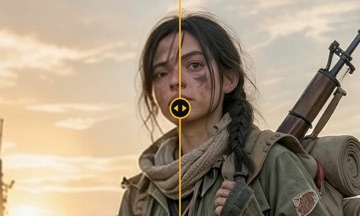
Upscaling can help when a generated illustration or an older photo looks too small for its intended placement. It is different from simply stretching the image: AI processing estimates additional detail. Those details are an interpretation of the source, so inspect faces, lettering and textures closely. For an archival photo where factual detail matters, keep the unmodified original alongside any enhanced copy.
How to get started
Choose your source image
Open Upscale Image and upload a picture or select an existing creation. Begin with the best source you have; repeatedly saving a compressed image can introduce defects that are hard to repair.
Set the output and check the quote
Review the modes, scale, format and quality options offered for your image. Available settings and token costs come from the app's current processing options.
Compare the details
Use the before-and-after comparison to check fine features. Download the result if it improves the image for your use, and retain the source for reference.
What to check before you keep an upscale
Zoom in on eyes, hair, product edges, fabric and any lettering. Then view the whole image at the size it will appear in your design. An increase in pixels is useful only if the picture still looks right.
Before you finish
Avoid treating an enhanced detail as proof of what was in the original photograph. If the source is damaged or faded, consider the restoration tool in the feature catalog before doing your final upscale.
Frequently asked questions
Can I upscale several images at once?
Batch upscaling is a Pro feature. Free accounts work on one image at a time; current batch limits and available modes are shown in the app.
Does upscaling recover the original detail?
AI upscaling estimates detail from the source. It can make a picture more useful at a larger size, but it cannot guarantee that newly generated details match the original scene.
Which output settings should I choose?
Choose settings for the place you will use the image and review the available output formats and quote in the app. Compare a result before processing a larger batch.
For billing and account questions, visit the help center or read the full FAQ.