
Imaginatron creative tools
Image to video
Give a photo or illustration a small, deliberate movement. Start with an image you already like, describe what should move and generate a clip in Create. This guide walks through choosing a starting frame and checking whether the motion preserves the details you need.
Account required to use the tool. Review current access requirements and any token quote in the app.
Keep the starting frame in control of the shot
An image establishes the subject, colors and composition before generation begins. A motion prompt explains the change: leaves stirring behind a still subject, for example, or a slow camera push toward an object. Begin with one movement. A large camera orbit asks the model to invent surfaces that the photo never showed, which can change the subject's appearance. For a first test, choose a sharp image with room around the subject and avoid an extreme crop. Keep a copy of the original so you can compare the face, product shape or illustration details against the generated frames.
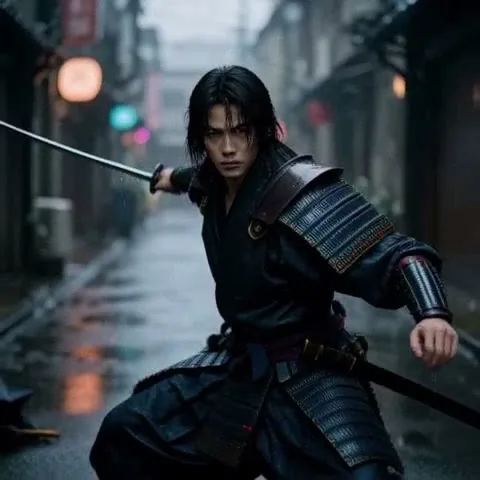
How to get started
Add a starting image in Video mode
Open Create, select Video and choose a model that accepts a starting image. Upload your photo or illustration through the image input. The Try this prompt link below fills the motion text and Video mode; you still need to attach your image.
Describe movement, then choose settings
Use the example below for a gentle push-in, or replace it with one visible action. Say what should stay still. Select a duration and output shape offered by the model, and check that the starting composition suits that shape.
Review access and the token quote
Check the model's access requirements and current quote before generating. Duration, quality and other model settings affect the cost. Use a short first test to judge the motion before spending tokens on another version.
Watch for changes across the whole clip
Look for flickering edges, a shifting face or lettering that changes between frames. If the subject drifts, simplify the movement and try again. Trim a usable section in the video editor and add audio there if needed.
A subtle motion prompt for your starting image
Use the uploaded image as the starting frame. Slowly push the camera toward the main subject, with very gentle background movement. Keep the subject's face, shape and clothing consistent with the image. Steady lighting, one continuous shot, no cuts.
Before you finish
Movement instructions express an intention; they do not lock every pixel. For a product shot, compare the outline and branding frame by frame. If you need a transition between two specific drawings, follow the separate AI In-between guide and prepare both poses.
Frequently asked questions
Does Try this prompt upload a photo for me?
No. It opens Create with the motion prompt and Video mode selected. Attach your own starting image and choose a model that accepts it before generating.
Why does the subject change when the camera moves?
The model estimates what the scene looks like over time, including areas hidden in the original. A smaller camera move and a clearer starting image can reduce unwanted changes, but exact preservation is not guaranteed.
Can I use a drawing instead of a photograph?
Yes. Use a clear illustration as the starting image and describe movement that fits its style. Keep a first test simple so you can inspect linework and character proportions.
Is every image-to-video model available to every account?
Access depends on the selected model and your account. Review the access message and token quote in Create. The pricing page explains plans and token packs.
For billing and account questions, visit the help center or read the full FAQ.